Much of the work I do on websites and web applications is custom development, which means that I have spent the past few years building on a very long career and focusing on the WordPress Block Editor. Thanks to a great deal of experience building for and with content management systems, I have learned to take the best approach for each project, reviewing the requirements of both the client and the system.
Much of the work I do relies on the standard content elements which WordPress provides—known as “Blocks”—and also on content elements which I build myself. Sometimes, it makes sense to build a completely customised content element from scratch, in order to allow the content editors to work quickly and with less necessity to learn WordPress Blocks deeply. Providing editors with a Block which has the right amount of control but with much-reduced complexity is often the right way to go, especially if the content manager has other responsibilities in their busy working day.
That being said, the Blocks which WordPress provide are very powerful and so it can make sense to use them wherever possible, and extend their functionality if necessary.
Extending the WordPress Core Button Block
On a current project, the client has a number of links throughout the site which link to a third-party booking system, and the URL for the link is always the same. Instead of requiring the client to manually add or amend the link across dozens of pages, I chose to extend the Button Block1—which is being used thanks to its design flexibility—and ensure that all of the Blocks use the same link.

After adding a Settings Page2 to the admin area of WordPress, in which a field “booking_url” can be modified, the next step was to ensure that the Button Block used this URL if a checkbox has been set in the editor.
I added a custom PanelBody to the Block controls, in which a ToggleControl allows the editor to specify when the URL from the settings should be used. In order to help the editor ensure that the necessary setting has been set, I added a Notice component which shows the URL which will be used when the option has been selected, or an alternative message if there is no appropriate value for the setting.
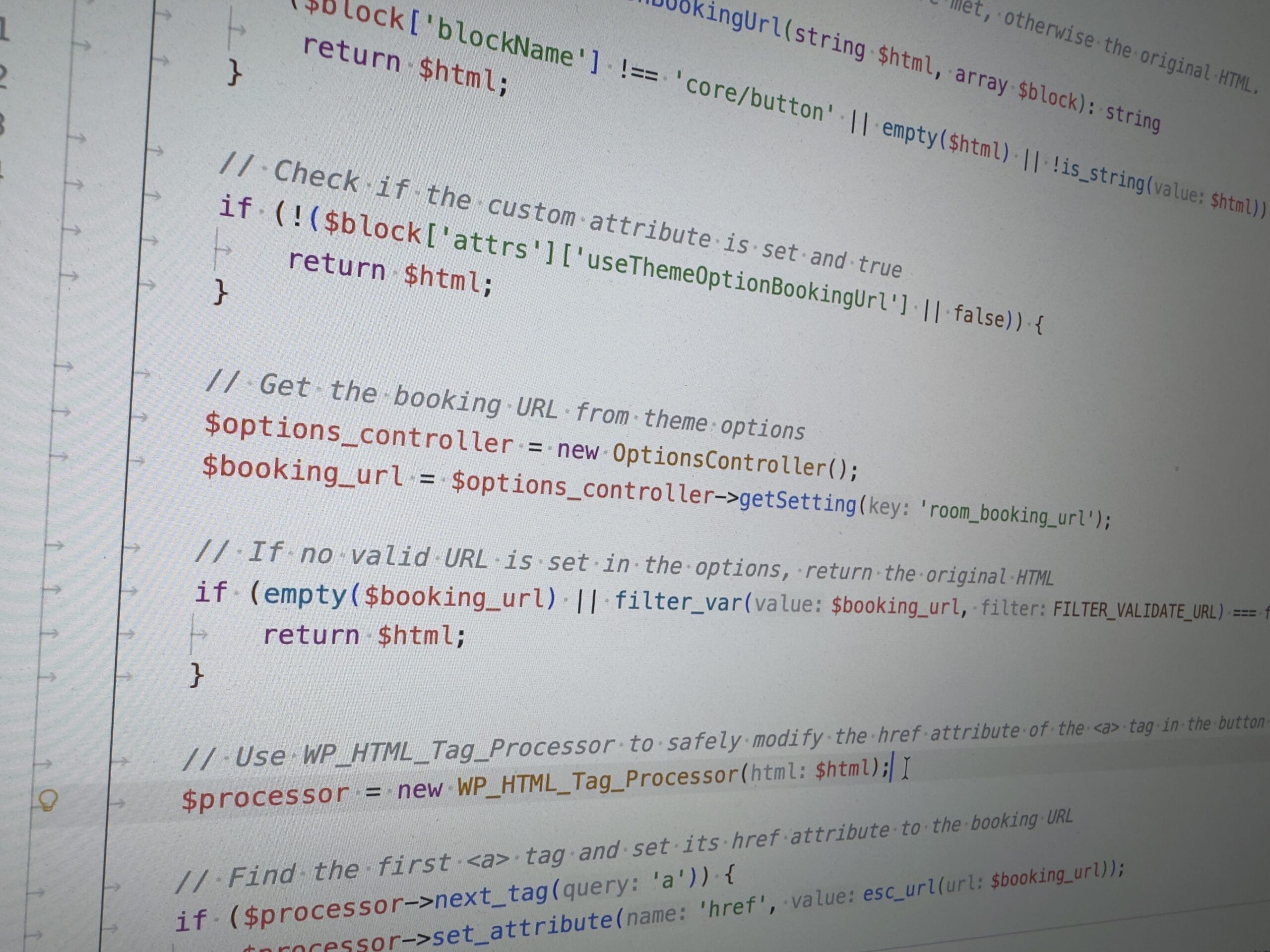
Once the controls were extended and the value of the ToggleControl was set as a custom Block attribute3, I switched over to PHP to modify the output of the Button block. Using the render_block_core/button filter, I check to see whether the custom attribute is set and is a valid URL. If so, then I use the WP_HTML_Tag_Processor4 to parse the HTML and replace the href attribute on the link.
Footnotes
- https://wordpress.org/documentation/article/buttons-block/ ↩︎
- https://developer.wordpress.org/plugins/settings/custom-settings-page/ ↩︎
- https://developer.wordpress.org/block-editor/reference-guides/block-api/block-attributes/ ↩︎
- https://developer.wordpress.org/reference/classes/wp_html_tag_processor/ ↩︎